
Rotary Encoder
An incremental rotary encoder that outputs digital pulses as it is turned, often featuring a built-in pushbutton.
Component Preview
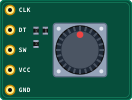 Encoder Module
Unlike a potentiometer, a rotary encoder has no end stops and can spin infinitely. As it spins, it outputs two digital square waves (CLK and DT) that are out of phase. By comparing these two signals, a microcontroller can determine both the speed and direction of rotation. It also includes a momentary pushbutton on the shaft.
Overview
The most common rotary encoder module for Arduino is the KY-040. It provides three main signals:
- CLK (Clock): Generates a pulse every time the knob clicks to a new position.
- DT (Data): Generates a similar pulse, but shifted in time. The phase difference between CLK and DT tells you the direction (clockwise vs counter-clockwise).
- SW (Switch): An active-low digital output from the built-in pushbutton (activated by pressing down on the knob).
Pin Reference
| Pin | Type | Description |
|---|---|---|
| CLK | digital | Clock pulse output. Connect to an Arduino digital pin. |
| DT | digital | Direction output. Connect to an Arduino digital pin. |
| SW | digital | Pushbutton switch (active LOW). Connect to an Arduino digital pin. |
| VCC | power | Power Supply (5V). |
| GND | power | Ground. |
Configurable Attributes
This component has no configurable attributes.
Wiring Diagram
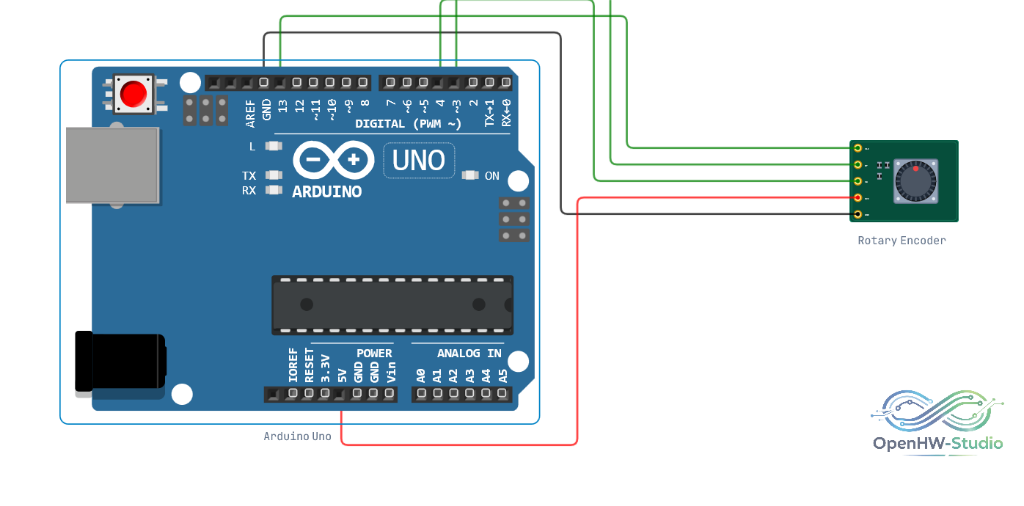
Example of connecting the Rotary Encoder to an Arduino Uno.
Example Arduino Code
This basic polling example checks the state of the CLK and DT pins to determine rotation, and reads the pushbutton.
const int clkPin = 2;
const int dtPin = 3;
const int swPin = 4;

int lastClk = HIGH;

void setup() {
  pinMode(clkPin, INPUT_PULLUP);
  pinMode(dtPin, INPUT_PULLUP);
  pinMode(swPin, INPUT_PULLUP);

  Serial.begin(9600);
  Serial.println("Rotary Encoder Ready.");
}

void loop() {
  // Read current CLK state
  int currentClk = digitalRead(clkPin);

  // If CLK has changed, a rotation occurred
  if (currentClk != lastClk && currentClk == LOW) {
    // Check DT to determine direction
    if (digitalRead(dtPin) != currentClk) {
      Serial.println("Rotated Clockwise ↻");
    } else {
      Serial.println("Rotated Counter-Clockwise ↺");
    }
  }

  lastClk = currentClk; // Save state

  // Check if button is pressed
  if (digitalRead(swPin) == LOW) {
    Serial.println("Button PRESSED!");
    delay(200); // Debounce
  }
}
Simulation Notes
- In the simulator, you can interact with the encoder by hovering over it and using the mouse scroll wheel, or by using the provided UI buttons/slider. Clicking the knob simulates pressing the SW button.